

VNC Viewer
VNC Viewer screenshots (15)
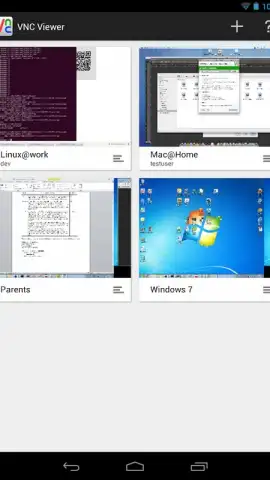
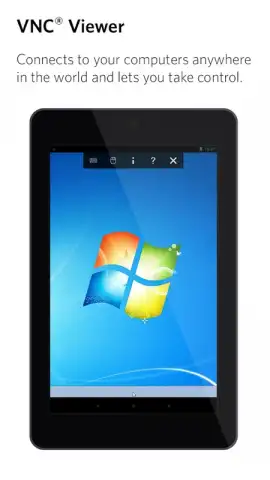
Description VNC Viewer
The Problem with Remote Access: Complexity and Cost
Many remote desktop solutions present a significant barrier to entry, requiring intricate configuration, expensive subscriptions, or are laden with disruptive advertising. For professionals and individuals who simply need reliable, direct control over a distant computer from their Android device, this complexity is unnecessary. The core need is straightforward: a secure, responsive tunnel between your mobile screen and a desktop environment, without the bloat. VNC Viewer addresses this by implementing the open-standard Virtual Network Computing protocol, offering a direct and highly efficient method for remote control that prioritizes performance and clarity over bundled, unrelated features. Its approach is technical yet accessible, transforming your smartphone or tablet into a precise window to another machine.
Core Mechanics and Setup Analysis
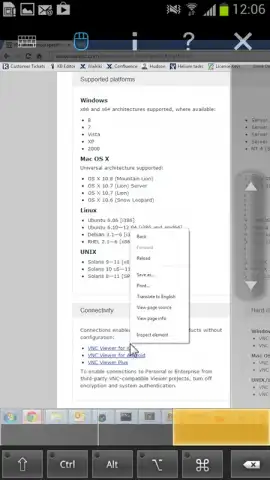
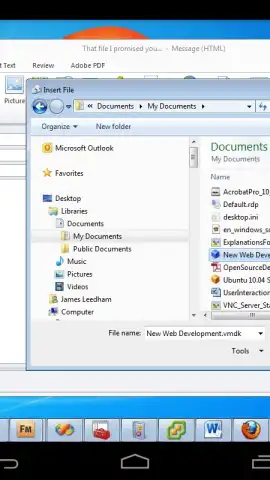
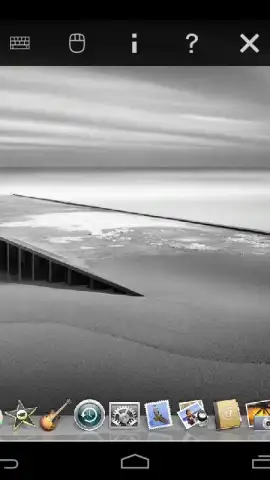
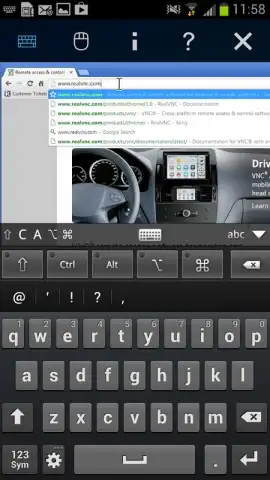
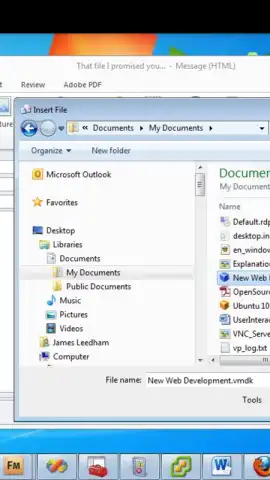
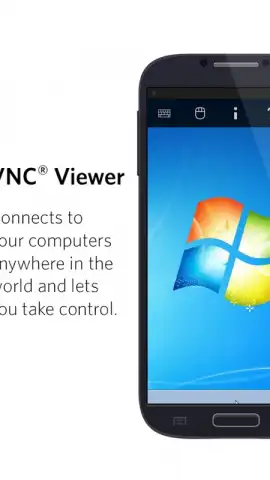
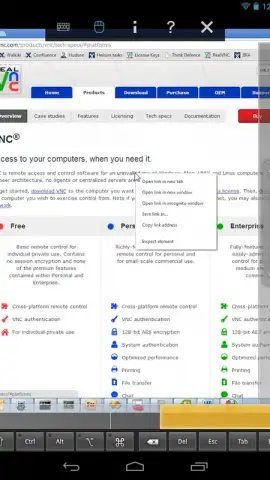
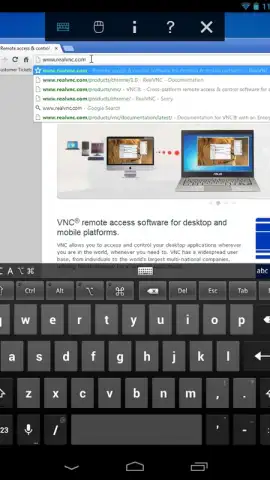
The application functions as a viewer client, requiring a corresponding VNC server component to be installed on the target computer. The initial setup, while involving specific network configuration, is a one-time process that establishes a permanent access route. This involves adjusting firewall rules on the host PC to allow the VNC server software to communicate, and typically configuring port forwarding on your router for external access. While this demands basic technical understanding, detailed guidance is provided, and the payoff is a direct, uncompromised connection. Once established, the connection is remarkably stable, with the viewer rendering the remote desktop in real time. Interaction is translated intuitively: a single finger tap acts as a mouse click, a drag gesture moves the cursor, and a two-finger drag simulates mouse wheel scrolling. The on-screen keyboard appears contextually, and you can switch to a full, persistent keyboard layout for extended typing sessions.
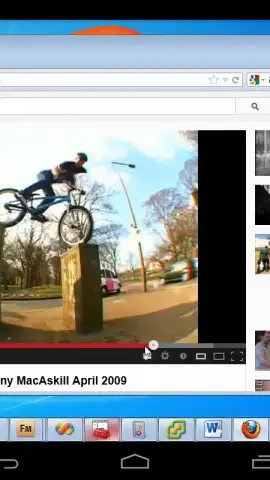
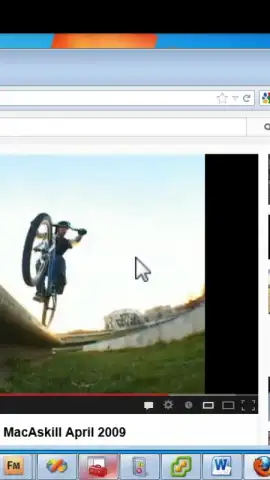
A critical performance differentiator is the optional Turbo VNC encoding extension. When the server-side component supports it, this technology dramatically enhances the experience over limited bandwidth or high-latency connections. It uses advanced compression algorithms to reduce the data load of changing screen pixels, making the remote session feel noticeably more responsive, especially when dealing with full-motion video, 3D applications, or graphically complex desktops. This focus on efficient data transmission is what sets it apart from more generalized remote support tools.
Key Feature Breakdown
- Direct Protocol Control: Utilizes the standard RFB protocol for a lean, responsive connection to any VNC server, avoiding proprietary bloat.
- High-Performance Turbo Mode: Optional encoding drastically reduces lag and improves frame rates for a near-local experience on slower networks.
- Comprehensive Input Translation: Full multi-touch gesture support, contextual keyboard, and special key mapping for precise control of the remote system.
The application is particularly effective for system administrators, developers needing to check on builds or servers, or individuals accessing a home computer for files or specific software. It excels in scenarios where you need to interact with the actual desktop environment, not just transfer files or conduct a one-off support session. For persistent, day-to-day remote access to a known machine, its efficiency is superior to many alternatives that are designed for occasional, ad-hoc support.
Start your seamless remote management today. Download VNC Viewer now and claim your direct desktop access advantage.
Heads up: you'll need wifi or a stable cellular data connection for reliable performance. The Turbo VNC performance enhancement requires server-side setup and is considered an extra feature.
 GooglePlay


